
OpenAI image model · Create with Nano Banana 2.1

GPT Image 2 AI Image Generator & Editor

Turn a detailed brief into a visual with GPT Image 2. Create posters with text, realistic product photos, and illustrated layouts, or upload a photo and describe your edits. Direct the composition, lighting, and materials in plain language, then refine the result for your project.

Detailed instructionsText in imagesReference-photo editingUp to 4K

What is GPT Image 2?

GPT Image 2 is OpenAI’s image generation and editing model. It accepts text and image inputs to create new visuals or revise an existing image. On Nano Banana 2.1, you can work with it in your browser: describe the subject and layout, add references when useful, and choose the available size and quality settings. Nano Banana 2.1 is an independent service, separate from ChatGPT.

What can you create with GPT Image 2?

Give each image a clear purpose, from a campaign headline to a product detail. These four creative directions show how to build a more specific brief.

Creative illustrations of the use cases below; not verified GPT Image 2 outputs.

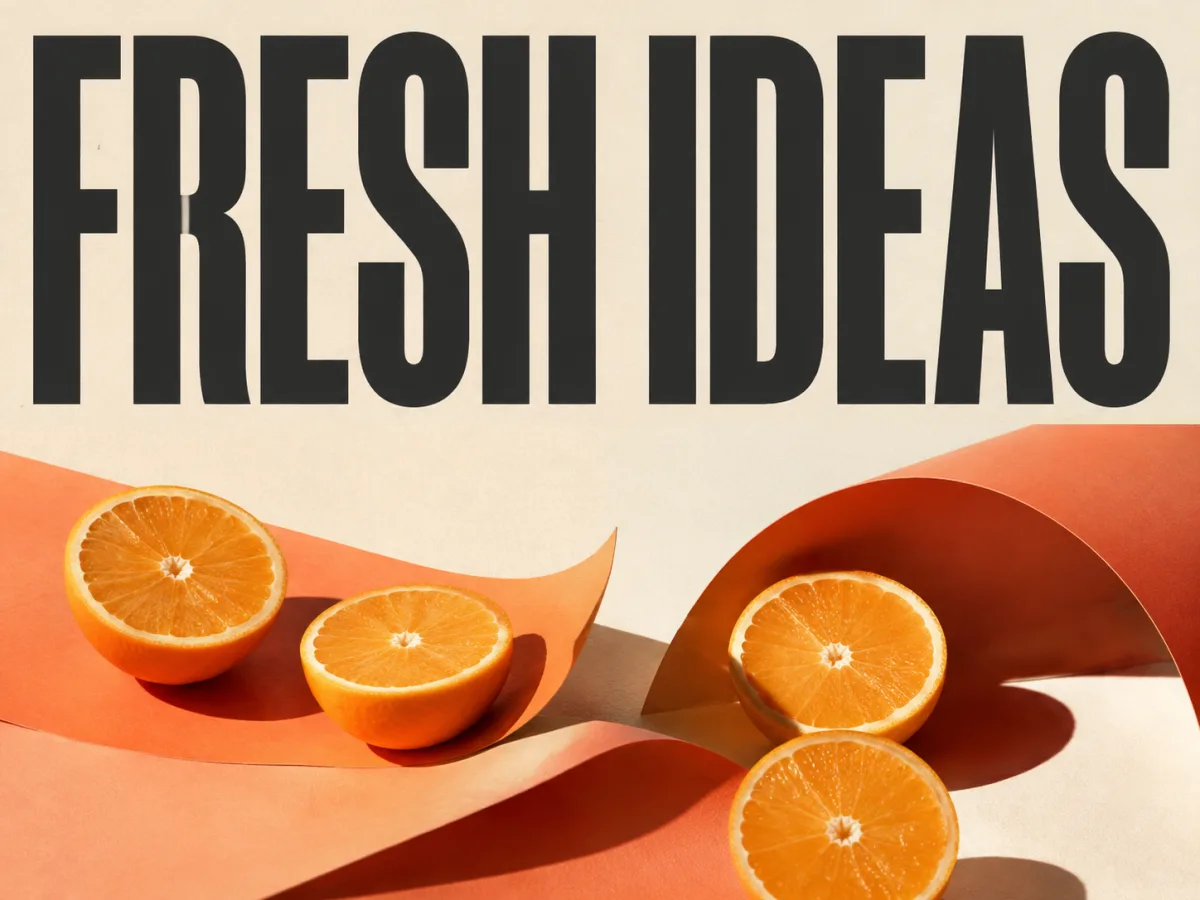
FRESH IDEAS poster with orange halves and coral paper on an ivory background01

Posters, labels, and readable headlines

Build a poster around a short headline, a clear focal point, and a defined color palette. Put the exact words in quotation marks and specify their placement and hierarchy. GPT Image 2 supports text in images for campaign concepts, menus, and packaging; review spelling and small print before publishing.
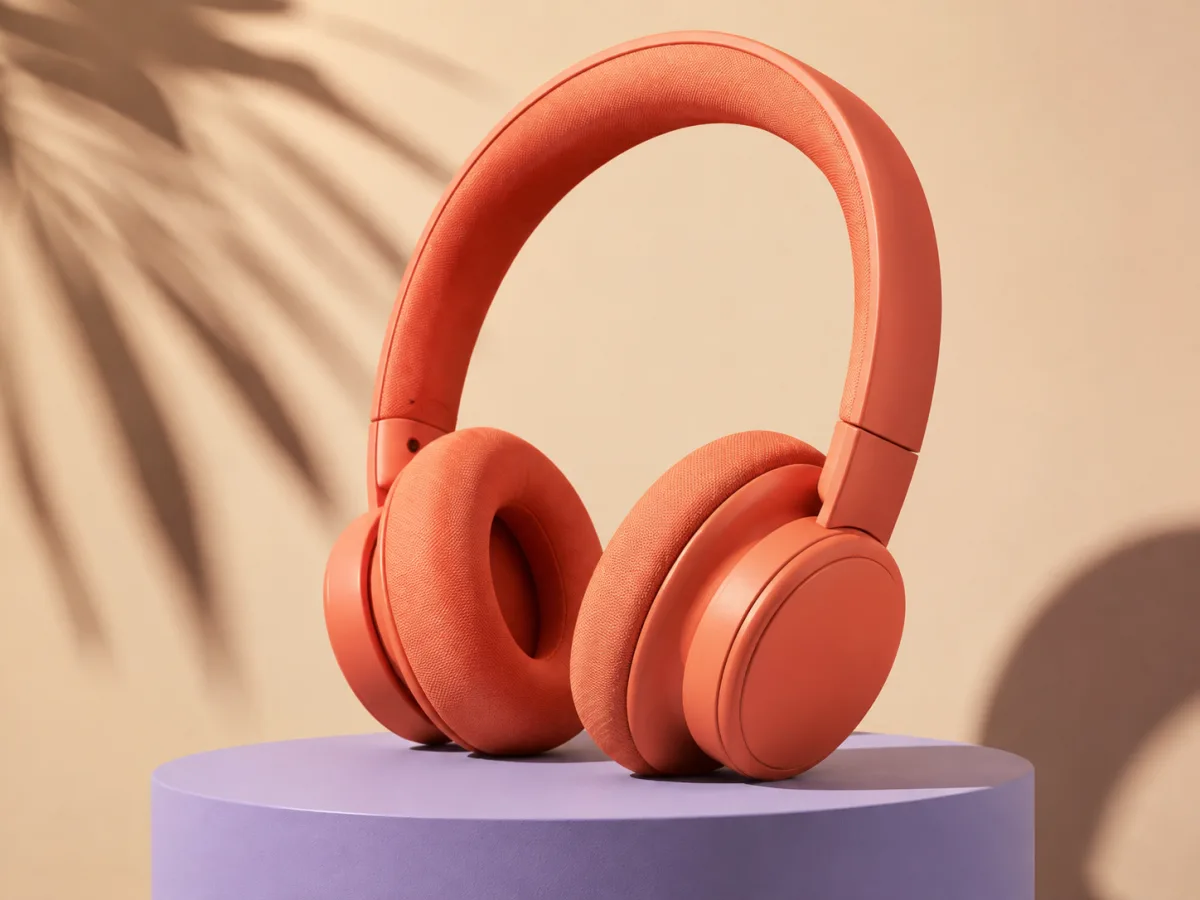
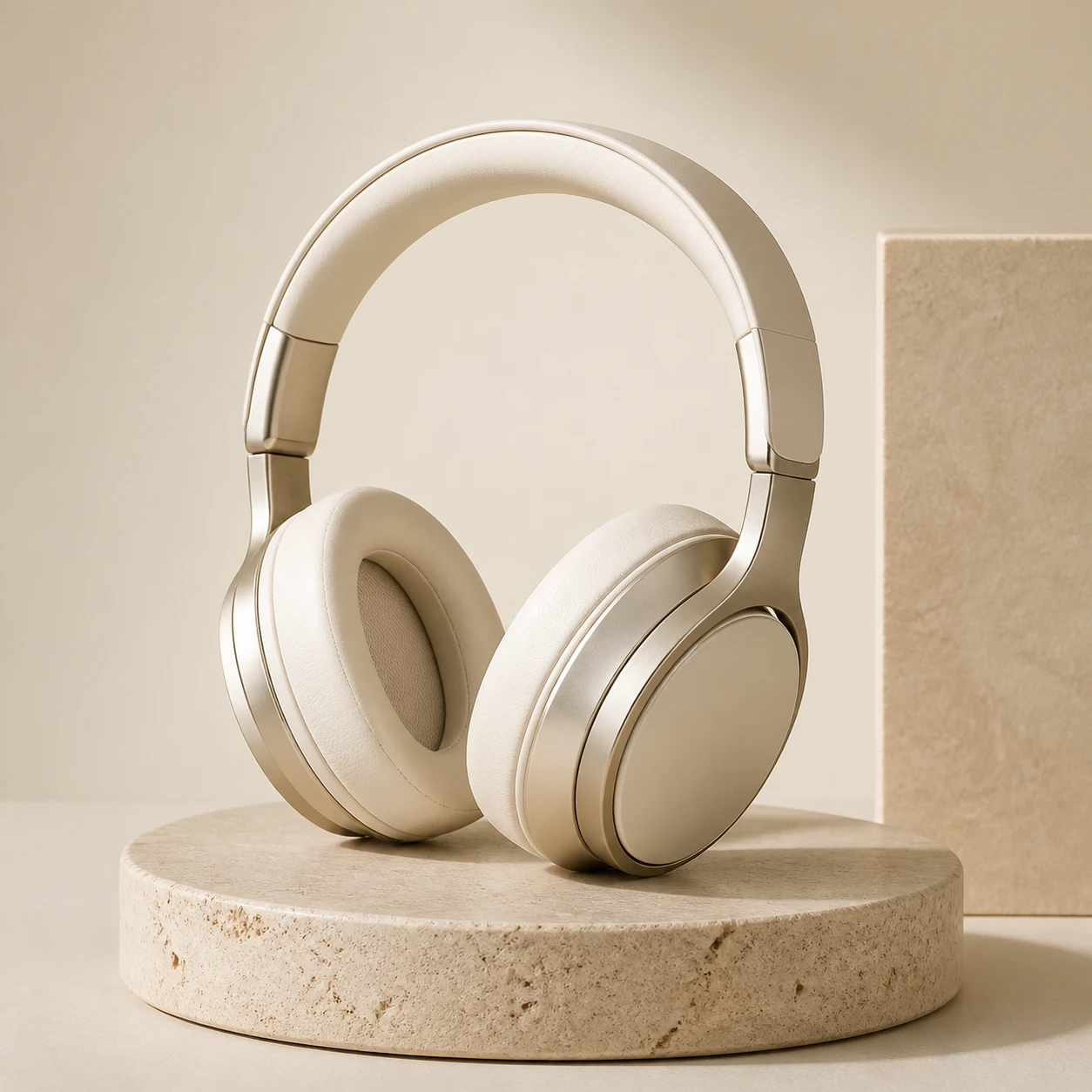
Coral over-ear headphones on a lavender pedestal with soft studio lighting02

Product photography with material and lighting control

Describe the product’s shape, finish, background, and camera angle. Use details such as matte plastic, woven cushions, or soft side lighting to give the scene direction. Upload a product reference when its appearance matters, then check that labels, proportions, and components remain accurate.

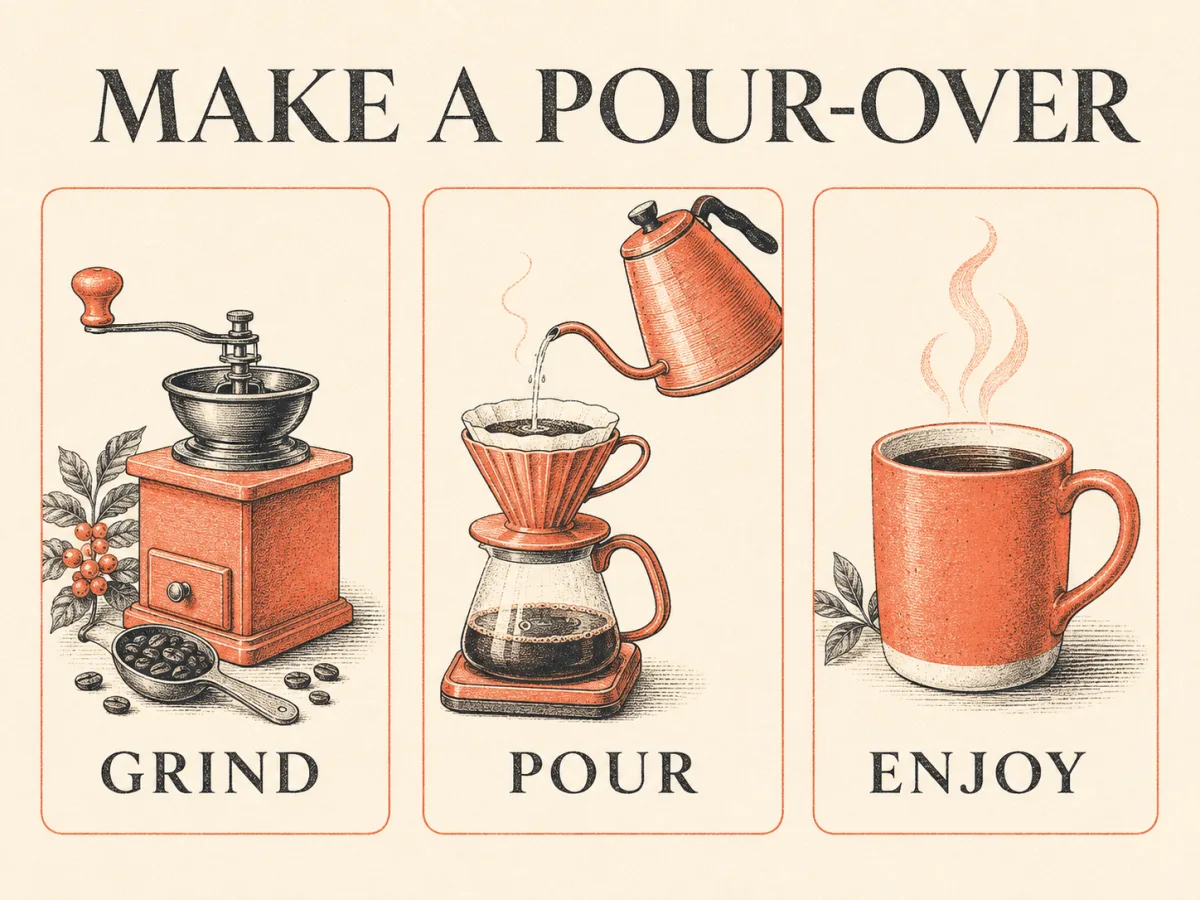
Three-panel coffee illustration labeled GRIND, POUR, and ENJOY03

Illustrated explainers and structured layouts

Turn a supplied outline into a visual sequence, an editorial illustration, or an infographic concept. Specify the number of panels, reading order, captions, and illustration style. Provide the facts and exact wording yourself, then review both the information and the layout in the result.

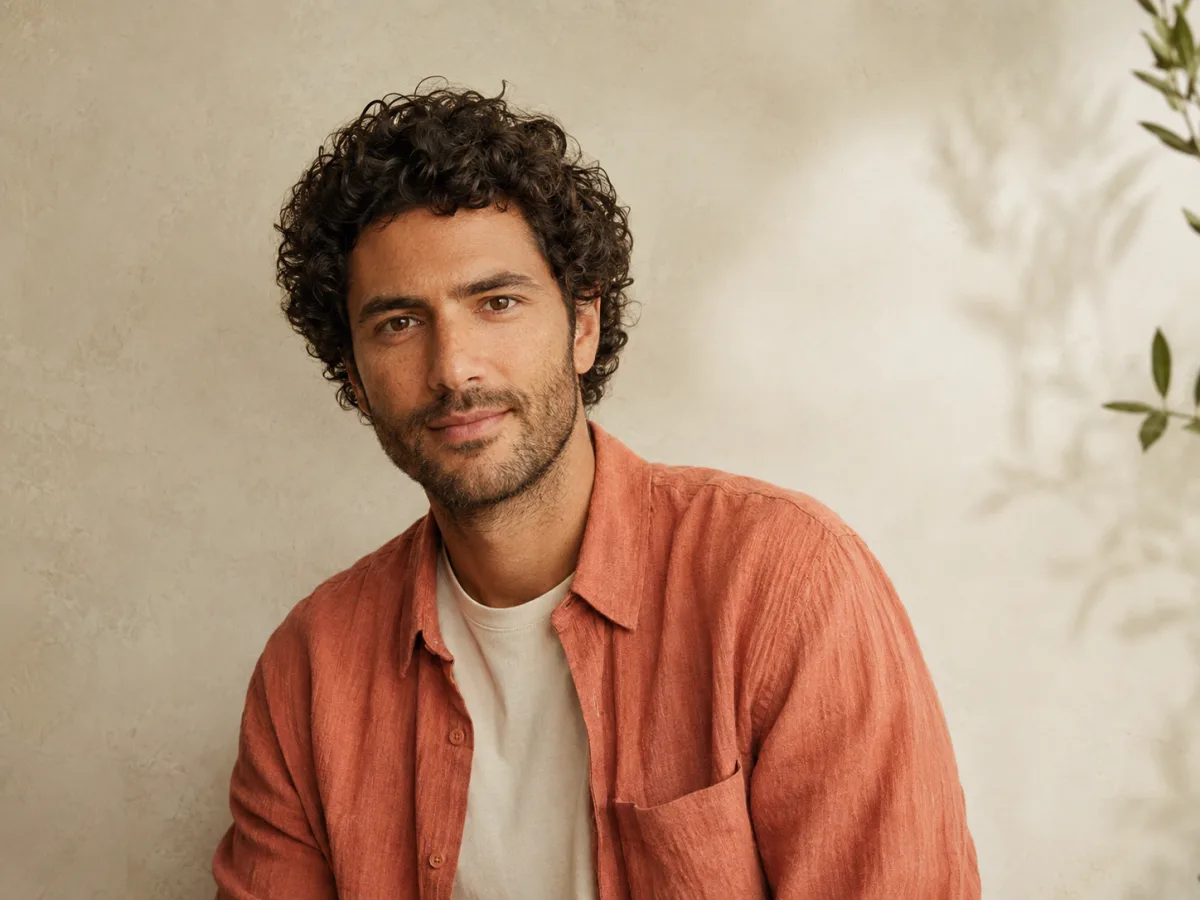
Portrait of a curly-haired man in a coral linen shirt against a warm studio wall04

Photo editing with clear instructions

Upload a portrait or scene and describe one change at a time: a new backdrop, warmer light, or a different outfit. State which details to preserve, including the face, pose, and framing. Reference images guide the edit, but likeness and fine details can still change between results.

How to use GPT Image 2 on Nano Banana 2.1

GPT Image 2 is already selected in the workspace above. Start with a prompt or a reference photo; no API key is needed.

  1. 01

    Write a brief or upload a photo

    Describe the subject, composition, lighting, and style. Include exact text in quotation marks. For an edit, explain what should change and what should stay the same.

  2. 02

    Choose the format and quality

    Select an aspect ratio and the resolution and quality available to your account. Free generation uses 1K Standard; higher settings depend on your access. Review the displayed cost before submitting.

  3. 03

    Generate, inspect, and refine

    Review the image for text, object details, and composition, then download the result you want to keep. To make another edit, use it as a reference and describe the next change.

Write a more useful GPT Image 2 prompt

Replace vague instructions with a concrete subject, layout, palette, and text. Adapt these examples to your own project.

Text-led campaign poster

Design a landscape poster on warm ivory paper. Put the exact headline “FRESH IDEAS” in large charcoal type across the top. Arrange orange halves and curved coral paper below, with crisp sunlight and a spacious editorial layout.

Studio product photograph

Create a close-up studio photograph of unbranded coral over-ear headphones on a pale lavender pedestal. Use a cream background, soft light from the upper left, visible fabric ear cushions, and realistic matte materials. No text or logos.

Three-panel illustrated guide

Create an ivory and coral infographic titled “MAKE A POUR-OVER”. Use three equal panels in this order: a hand grinder labeled “GRIND”, a kettle and dripper labeled “POUR”, and a steaming mug labeled “ENJOY”. Keep the lettering large and the illustration style consistent.

Pricing

Choose the plan that fits your needs

Starter

-50%
$10$5/month

For trying ideas and occasional creation

Billed yearly ·$120$60/year

Subscribe

  • Everything in Free
  • 1,000 credits every month
  • Priority processing queue
  • Access to advanced AI models
  • Supported 2K and 4K output
  • Commercial use while subscribed
  • 50% bonus credits on credit packs while subscribed
    Recommended

    Pro

    -50%
    $20$10/month

    For regular creation and professional projects

    Billed yearly ·$240$120/year

    Subscribe

    • Everything in Free
    • 2,200 credits every month
    • Priority processing queue
    • Access to advanced AI models
    • Supported 2K and 4K output
    • Commercial use while subscribed
    • 50% bonus credits on credit packs while subscribed

      Ultimate

      -50%
      $40$20/month

      For high-volume image production

      Billed yearly ·$480$240/year

      Subscribe

      • Everything in Free
      • 5,000 credits every month
      • Priority processing queue
      • Access to advanced AI models
      • Supported 2K and 4K output
      • Commercial use while subscribed
      • 50% bonus credits on credit packs while subscribed

        GPT Image 2 FAQs

        Practical answers about GPT Image 2, reference images, output settings, and access on Nano Banana 2.1.

        01

        What is GPT Image 2 used for?

        Use it to generate images from a written brief or edit a photo with text instructions. Common projects include posters, product visuals, illustrations, and structured layouts. The best choice depends on your brief and the result you need.

        02

        Is GPT Image 2 free on Nano Banana 2.1?

        Nano Banana 2.1 offers a free generation option at 1K Standard quality, subject to availability and usage limits. Higher resolution and quality options require the applicable paid access. Check the workspace for your current options.

        03

        Can GPT Image 2 write text inside an image?

        Yes. Supply the exact wording in quotation marks and explain its position, size, and hierarchy. Short headlines are easier to review than dense paragraphs. Always inspect spelling, numbers, and small text.

        04

        How many reference images can I upload?

        Nano Banana 2.1 accepts JPEG, PNG, and WebP reference images. The guest or zero-credit free trial accepts one reference image; the regular workspace supports up to five. The upload control shows the limit for your current mode.

        05

        Does GPT Image 2 support 4K on Nano Banana 2.1?

        Nano Banana 2.1 offers 1K, 2K, and 4K settings and seven aspect ratios. Free generation uses 1K Standard; 2K and 4K require applicable paid access. Available sizes describe Nano Banana 2.1’s output options.

        06

        Which image quality settings are available?

        The workspace offers Standard, Medium, and High for GPT Image 2. Access and credit cost depend on the selected settings. Review the displayed amount before submitting; a more demanding setting does not guarantee every detail will be correct.

        07

        Do I need a ChatGPT subscription or an OpenAI API key?

        No API key or ChatGPT subscription is needed to use Nano Banana 2.1’s interface. Nano Banana 2.1 accounts, usage limits, subscriptions, and credits are separate from those of ChatGPT and OpenAI.

        Create with GPT Image 2

        Have a headline, product brief, or photo to edit? Add your instructions and start creating with GPT Image 2.