
AI PHOTO EDITING

Remove People from a Photo Without Losing Your Main Subject

A stranger crossed behind your family, a tourist stepped into a landmark shot, or a passerby pulled attention from your portrait. Upload the photo, describe exactly who should disappear, and ask Nano Banana 2.1 to rebuild the visible background.

Start your first real photo edit free, without creating an account.

One photo · JPEG, PNG or WebP · Up to 10 MB · Preview and download here

Remove people from your photo now

Remove people from your photo now

Upload one image, then identify the person by position, clothing, or relationship to the main subject. Tell the editor what must stay. This tool takes written instructions; it does not use a brush or a selected mask.

Preparing your generation settings…

Remove people from photo: before and after

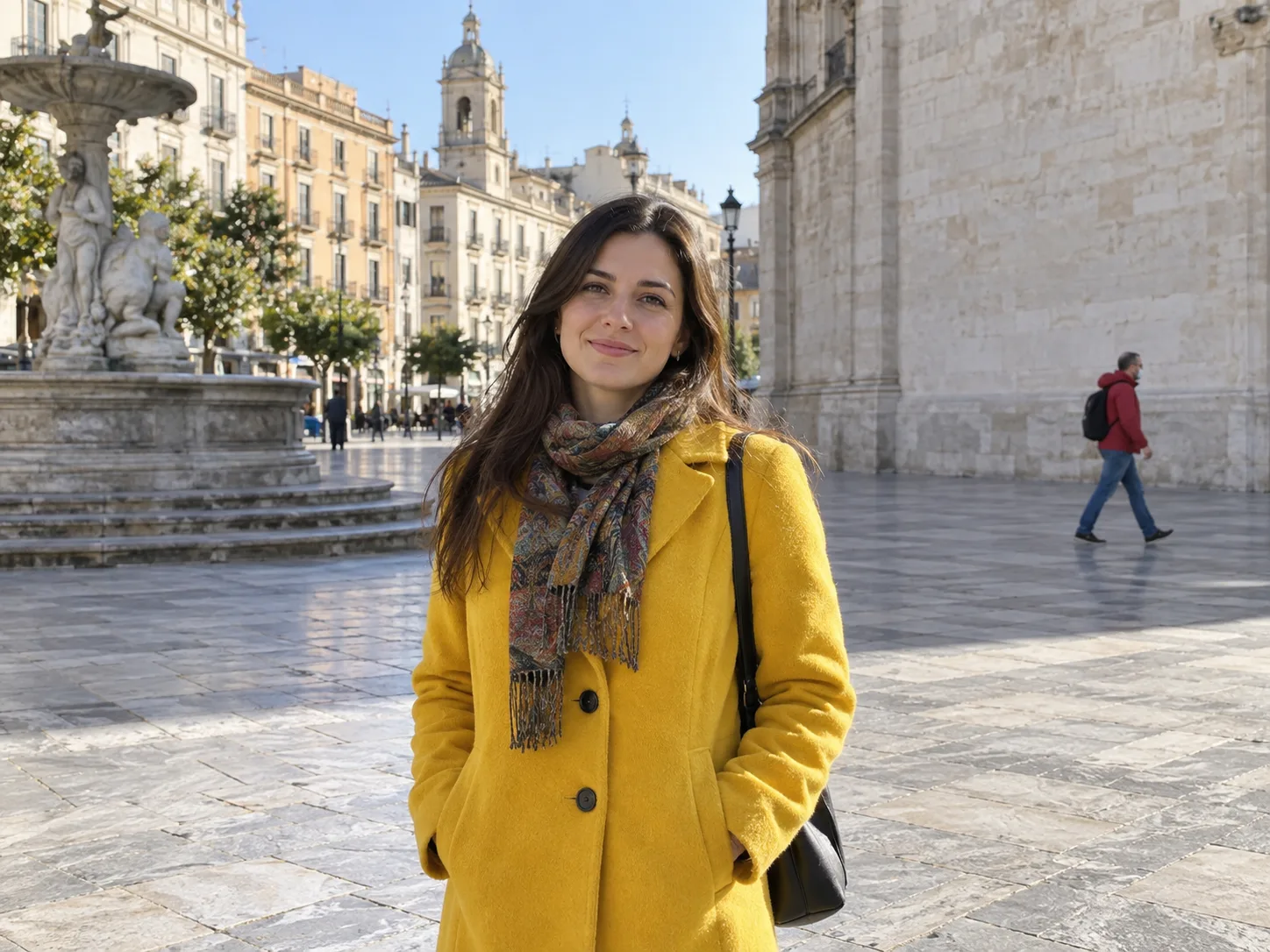
Remove a passerby from a city portrait — Before
Before
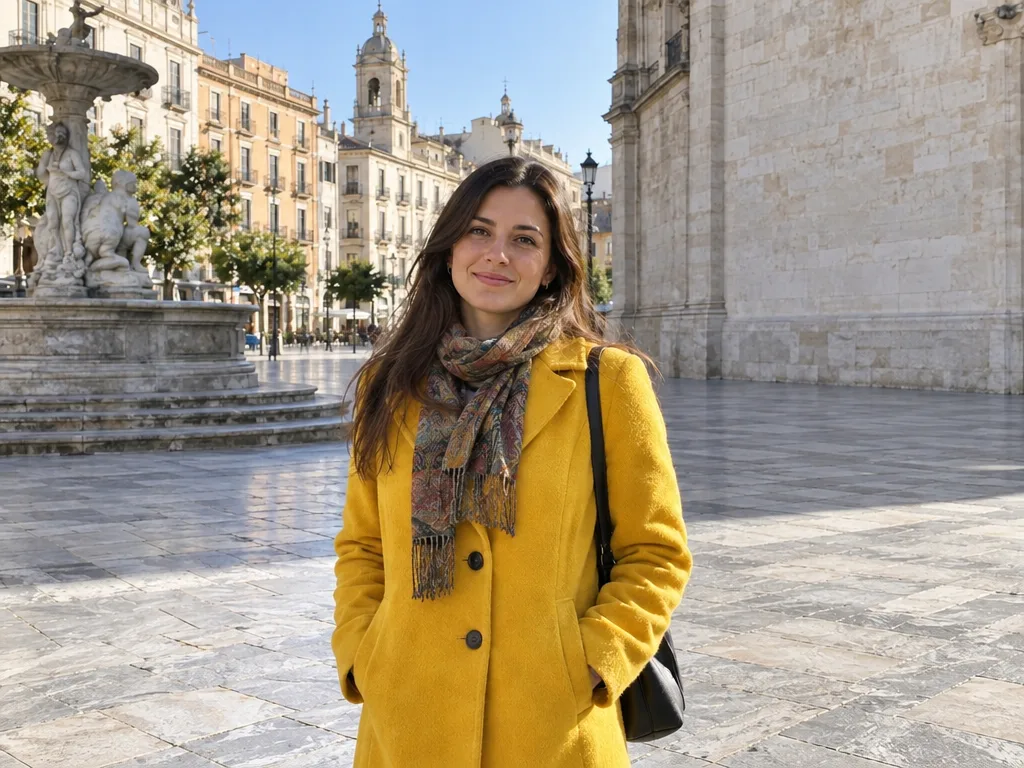
Remove a passerby from a city portrait — After
After

Remove a passerby from a city portrait

The person in the red jacket disappears from the right of the square. The woman in yellow remains, while the wall and paving are reconstructed. The framing and some details of the main subject also changed, so inspect the full result before using it.

“Remove the single person in the red jacket walking in the far right background. Keep the woman in the yellow coat in the foreground, her face, clothing, pose, fountain, stone plaza, wall and lighting as close to the original as possible. Reconstruct the empty wall and paving behind the removed person naturally.”
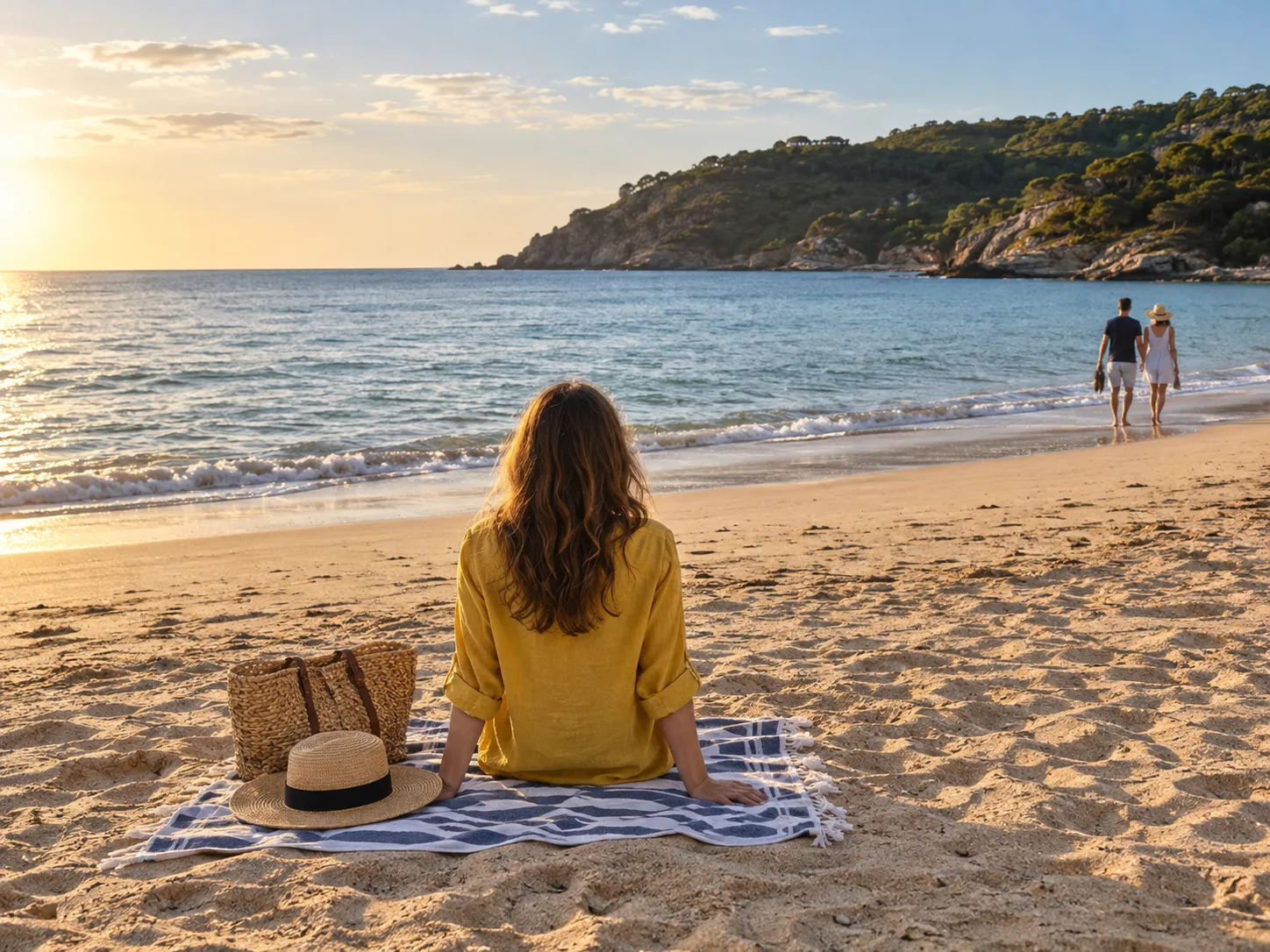
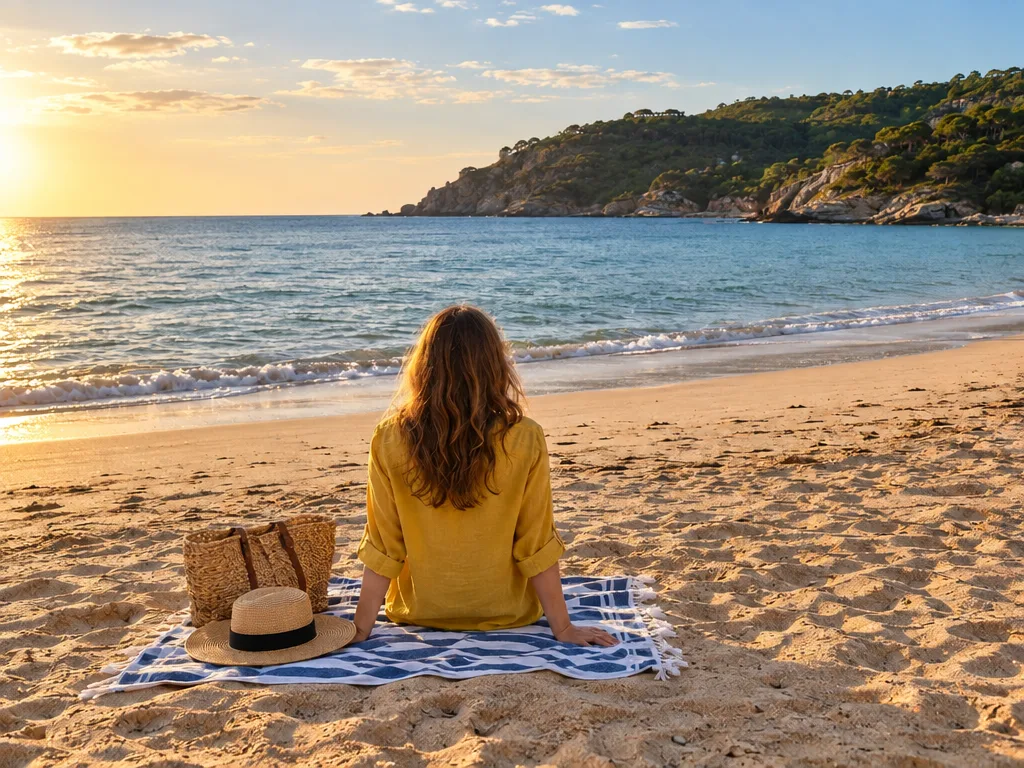
Clear beach walkers behind the subject — Before
Before
Clear beach walkers behind the subject — After
After

Clear beach walkers behind the subject

The two people by the shoreline are removed and the sand and surf continue behind them. The woman on the towel, bag, hat, and headland remain, although the framing and fine details shift slightly.

“Remove the two people walking together by the shoreline on the far right. Keep the woman in the yellow shirt sitting on the towel, the wicker bag, straw hat, sea, headland, light and framing as close to the original as possible. Replace the removed walkers with matching sand and surf.”
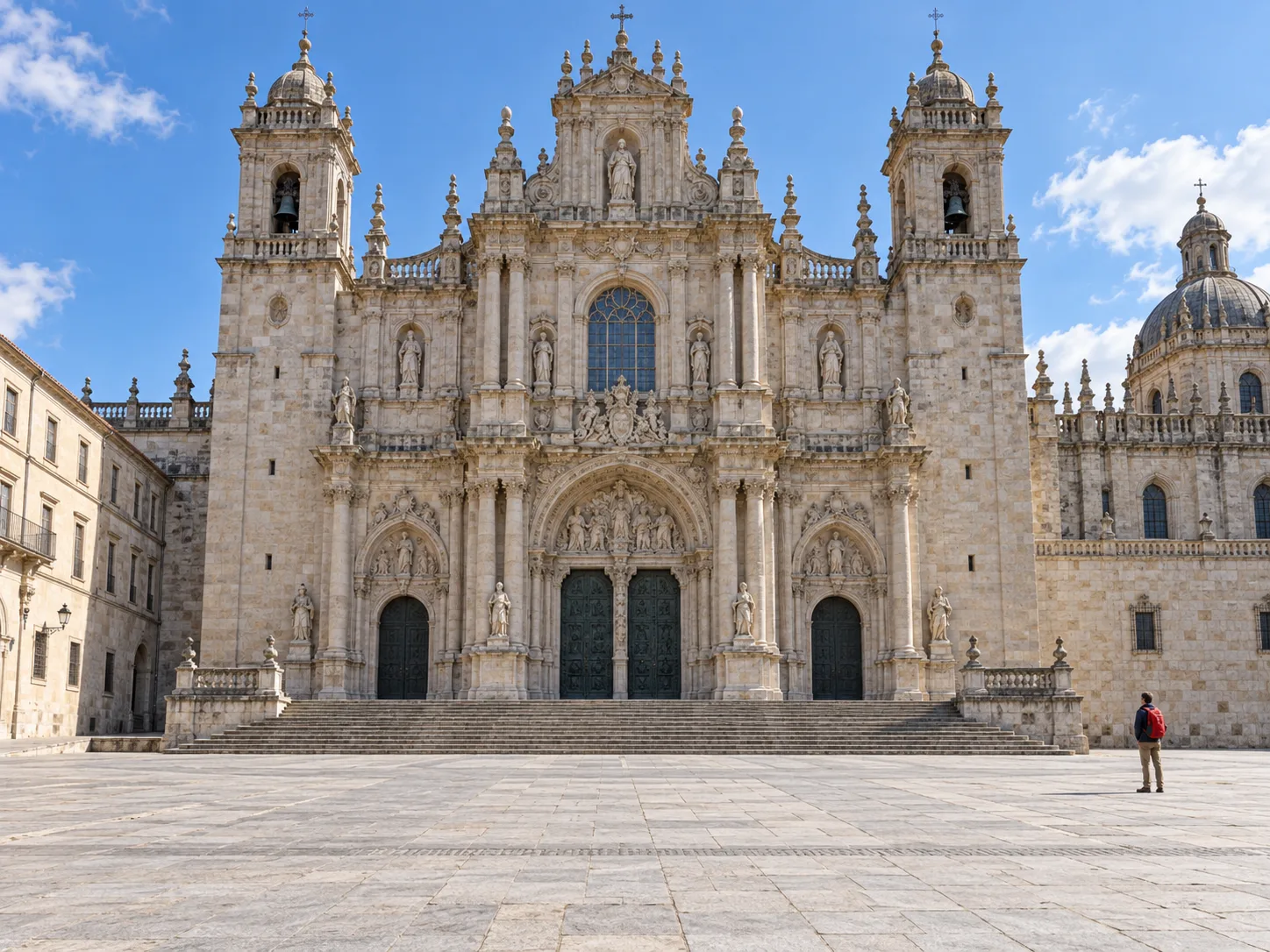
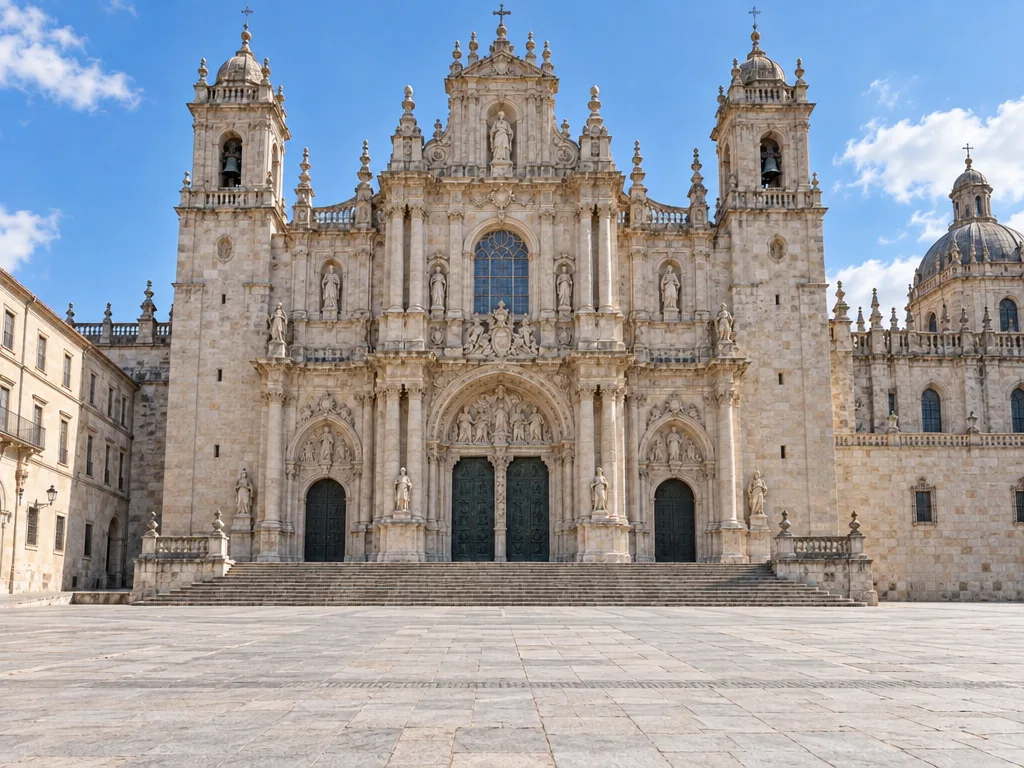
Clear a tourist from a landmark photo — Before
Before
Clear a tourist from a landmark photo — After
After

Clear a tourist from a landmark photo

The lone visitor with a red backpack is removed from the right edge of the plaza. The cathedral and broad stone steps remain the focus, while the wall and paving behind the visitor are reconstructed. Fine architectural details can shift in a generated edit.

“Remove the lone tourist with the red backpack on the far right of the cathedral plaza. Keep the cathedral facade, statues, columns, steps, stone paving, perspective and daylight as close to the original as possible. Reconstruct the empty wall and pavement behind the person naturally.”
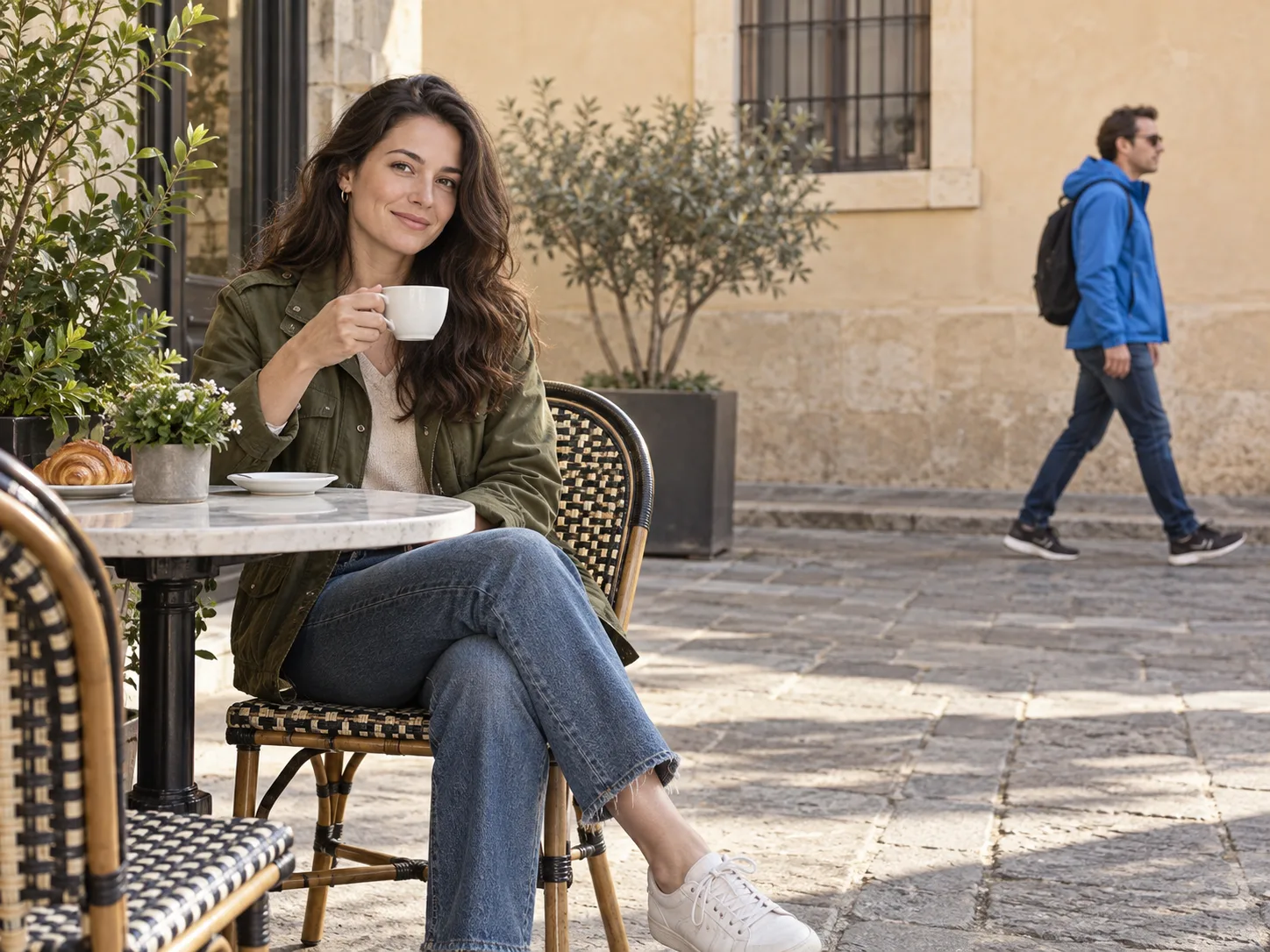
Remove a passerby from a cafe portrait — Before
Before
Remove a passerby from a cafe portrait — After
After

Remove a passerby from a cafe portrait

The man in blue disappears from the right background. The seated woman, coffee cup, and table remain in the scene, while the beige wall and pavement continue through the cleared space. Compare the subject and small objects before downloading.

“Remove only the man in the bright blue jacket walking on the right side of the cafe photo. Keep the seated woman in the olive jacket, her face, hands, coffee cup, table, chair, plants and natural light as close to the original as possible. Continue the beige wall and stone pavement where the passerby stood.”

When removing a person improves the photo

The best use of a people remover is a focused cleanup: one unwanted figure or a small group that was not meant to be the subject. You can keep the story of the image while asking the AI to repair the part behind them.

Travel photos and landmarks

You waited for good light, but strangers walked through the square just as you took the shot. A crop may cut off the building or the person you travelled with. Describe the walkers by their location and ask for the pavement, steps, sky, or wall to continue naturally. If a crowd covers most of the landmark, the model must invent more of the scene and the result is less predictable.

Portraits and family pictures

A person standing behind a portrait subject can make a carefully framed photo feel busy. State who is the main subject and where the extra person stands. For a family picture, name everyone who should remain. “Remove the man behind the group, keep all four family members” is clearer than “remove the man,” especially when several people wear similar colors.

Street, event, and venue shots

A pedestrian near the edge of a street scene or a staff member behind a speaker may be removable without changing the central moment. Ask for the road, wall, or seating to be reconstructed. Avoid editing documentary, news, evidence, or commercial photos in ways that could misrepresent what happened or what a place looked like.

How to remove people from a photo

The whole workflow stays on this page. You do not need to prepare a mask, install software, or learn a set of editing tools; the clarity of the written instruction matters most.

  1. 1. Upload the original photo

    Choose one JPEG, PNG, or WebP image up to 10 MB. Check that the person you want removed is visible and that there is enough surrounding scenery to suggest a replacement. Nano Banana 2.1 shows the complete uploaded image so you can describe positions accurately. The first upload also suggests a matching output aspect ratio unless you have already chosen one yourself.

  2. 2. Identify the person and protect the subject

    Write “the person in the red jacket at the far right” or “the two walkers behind the couple,” then say who must remain. Add a brief instruction for the background: continue the brick wall, empty the sidewalk, or recreate the water. You can fill the template above and replace its details with those from your own image. Review the request before submitting; the template never starts a task by itself.

  3. 3. Review, refine, and download

    Submit the edit and inspect the result on this page. Compare faces, hands, shadows, straight lines, and areas where a removed person overlapped the subject. If the wrong person disappeared or the new background looks odd, make the instruction more specific and try again. Download the result you want to keep, especially when using an anonymous session with limited retention.

Write a better removal instruction

A small amount of location detail is more useful than a long list of adjectives. The AI sees the whole reference image, but it still needs to know which person is the distraction.

Name the person by a unique clue

Use position, clothing, action, or proximity: “the cyclist behind the bride,” “the child-sized figure at the far left,” or “the two tourists under the arch.” If people overlap or dress alike, describe the one you want to keep too. This reduces ambiguity without requiring a brush, bounding box, or second uploaded image.

Say what should not change

Protect the main person, their face, pose, outfit, nearby objects, composition, and lighting. Do not promise pixel-perfect preservation: generative editing can slightly change areas outside the removed figure. The instruction helps prioritize them, and the result should always be inspected before sharing or printing.

Give a simple background goal

“Continue the pavement” or “restore the plain wall” makes the intended fill concrete. The model cannot recover the actual scene hidden behind someone; it creates a plausible replacement. Repeating “perfectly seamless” many times does not reveal information that was never in the source photo.

Work in manageable edits

If a photo has many distractions, begin with one clearly identified person or a small group. Check whether the first result keeps the subject intact before describing the next change. A large crowd over detailed architecture, faces, or patterned flooring gives the model much more to invent at once.

What this editor can and cannot guarantee

  • There is no brush or pixel-level mask on this page. The AI interprets your written instruction and can occasionally remove the wrong person when the description is vague.
  • The background behind a person is generated, not recovered from the original camera exposure. Railings, tiles, signs, reflections, and shadows may need a second attempt or manual touch-up.
  • When two people embrace, hold hands, or overlap heavily, preserving one while removing the other is difficult. Hair, limbs, clothing, and shared objects may change.
  • The whole image may shift in framing, color, or fine detail, including the person you asked to keep. Check the entire output rather than assuming untouched areas are pixel-identical.

Before you upload or share

Upload only photos you have the right to edit. Your reference image and result are private to your session rather than added to a public gallery automatically. Anonymous files follow the current 72-hour retention policy, so download any result you want to keep. A free result is for personal, non-commercial use; paid rights are conditional and do not replace permissions relating to the original photograph or anyone pictured. Avoid presenting a changed documentary or evidentiary image as an unaltered record.

Need to change words in the same photo?

Removing a passerby and replacing lettering are different tasks. If the unwanted detail is a sign, date, label, or caption, use the image text editor and describe the exact wording to replace. You can stay within the same photo-editing workflow without rebuilding the whole design.

Open the Image Text Editor

Questions about removing people from photos

Can I remove one person but keep everyone else?

Yes, that is the most useful way to write the request. Identify the person by position or clothing and list the people who must remain. Inspect the result because similar or overlapping figures can still confuse the model.

Does this page automatically detect or let me brush people?

No. Nano Banana 2.1 accepts one photo and a written edit instruction here. Describe the specific person to remove; there is no automatic people selection or manual brush mask on this page.

Can I remove a crowd from a travel photo?

You can ask, but the more background a crowd covers, the more the AI must invent. Start with a smaller group when possible and look closely at architecture, patterned surfaces, and your main subject afterward.

Is removing people from a photo free?

An eligible visitor can start with the current free first-image benefit without signing in. Later edits depend on the free credits or paid credits available to the account. The page shows the applicable settings before you submit.

Which photo files can I use?

Upload one JPEG, PNG, or WebP file up to 10 MB. A clear image with a visible subject and enough surrounding background gives the model a better reference than a tiny or heavily compressed photo.

Will the background be exactly what was behind the person?

No tool can see the pixels hidden by the person in the original photo. Generative AI creates a plausible continuation based on what remains visible. Treat it as an edit, not a recovered camera original.

What if the wrong person disappears or the edit fails?

For a completed image that looks wrong, keep your source photo and refine the instruction before another attempt. If the task ends in a technical failure, Nano Banana 2.1 follows the existing refund or free-attempt release rules.

Are my original photos published?

No. Uploads and generated results are not automatically posted to a public gallery. Anonymous content follows the current 72-hour retention rule; download what you want to keep.

Remove people from your photo now