AI IMAGE TEXT EDITOR

Free AI Image Text Editor to Edit Text in Images Online

Fix a typo, replace a label, or update a date without rebuilding the whole design. Upload one image and tell Nano Banana 2.1 what text to change in plain language.

Your first real image text edit starts free—no account required.

JPEG, PNG & WebPOne image up to 10 MBEdit and download on this page
Edit text in your image now

Edit text in your image now

Upload a screenshot, photo, or document. Describe two or three exact replacements and what should remain unchanged.

Preparing your generation settings…

Real-world image text edits, described in one sentence

A useful image text editor should handle the files people already have—not just blank templates. These examples show the kind of focused change you can request with a natural-language prompt.

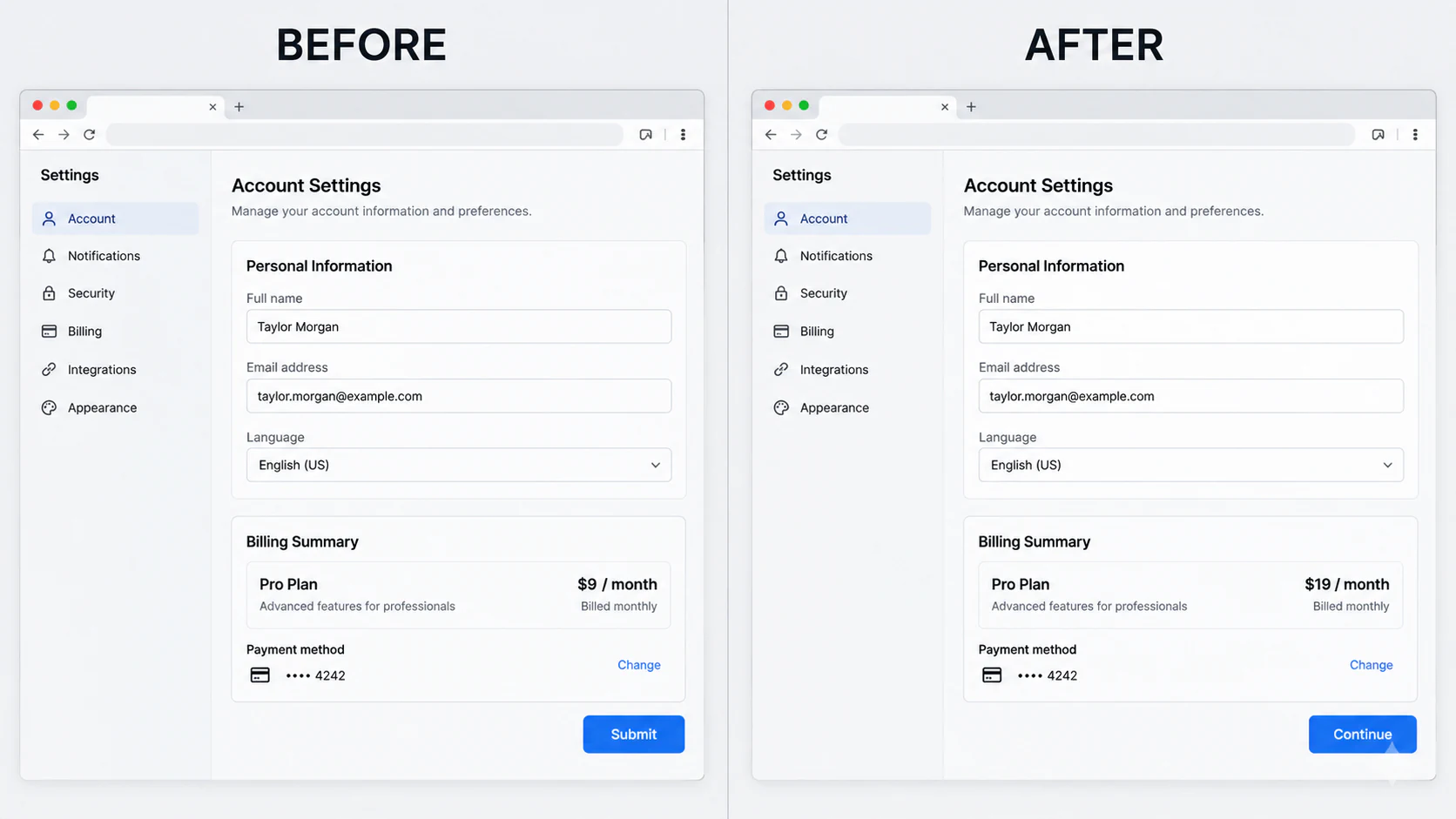
Edit labels and prices in a software screenshot
01

Edit labels and prices in a software screenshot

Change a button label and plan price while asking the AI to keep the navigation, fields, spacing, colors, and every unrelated part of the interface untouched.

“Replace “Submit” with “Continue” and “$9 / month” with “$19 / month”. Keep everything else unchanged.”

Illustrative example. Actual results may vary.
Correct text in a mobile screenshot
02

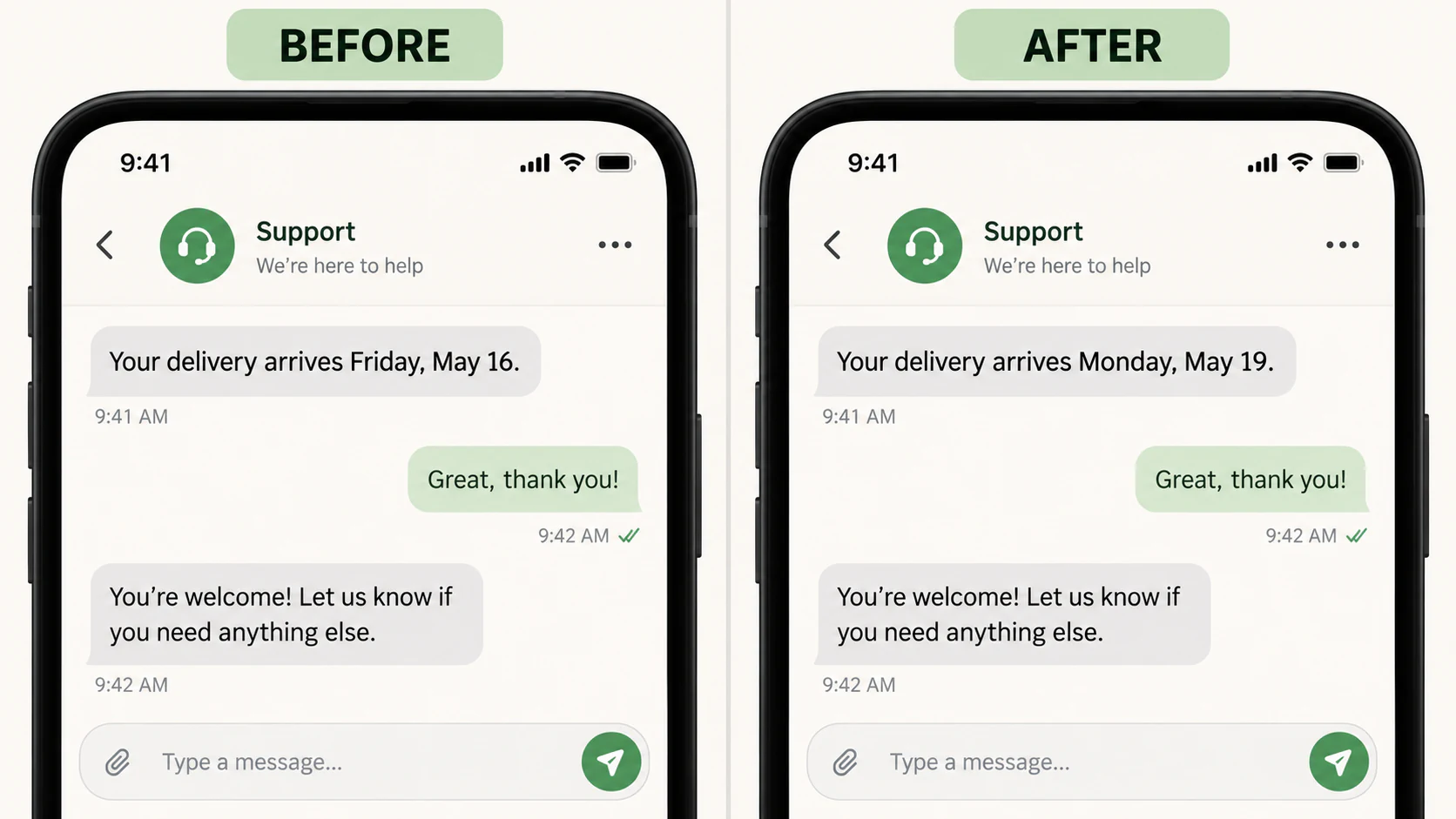
Correct text in a mobile screenshot

Use the screenshot text editor to correct a date, status, short message, or UI label without recreating the entire screen from scratch.

“Change “Friday, May 16” to “Monday, May 19”. Preserve the message bubble, font feel, spacing, and the rest of the screenshot.”

Illustrative example. Actual results may vary.
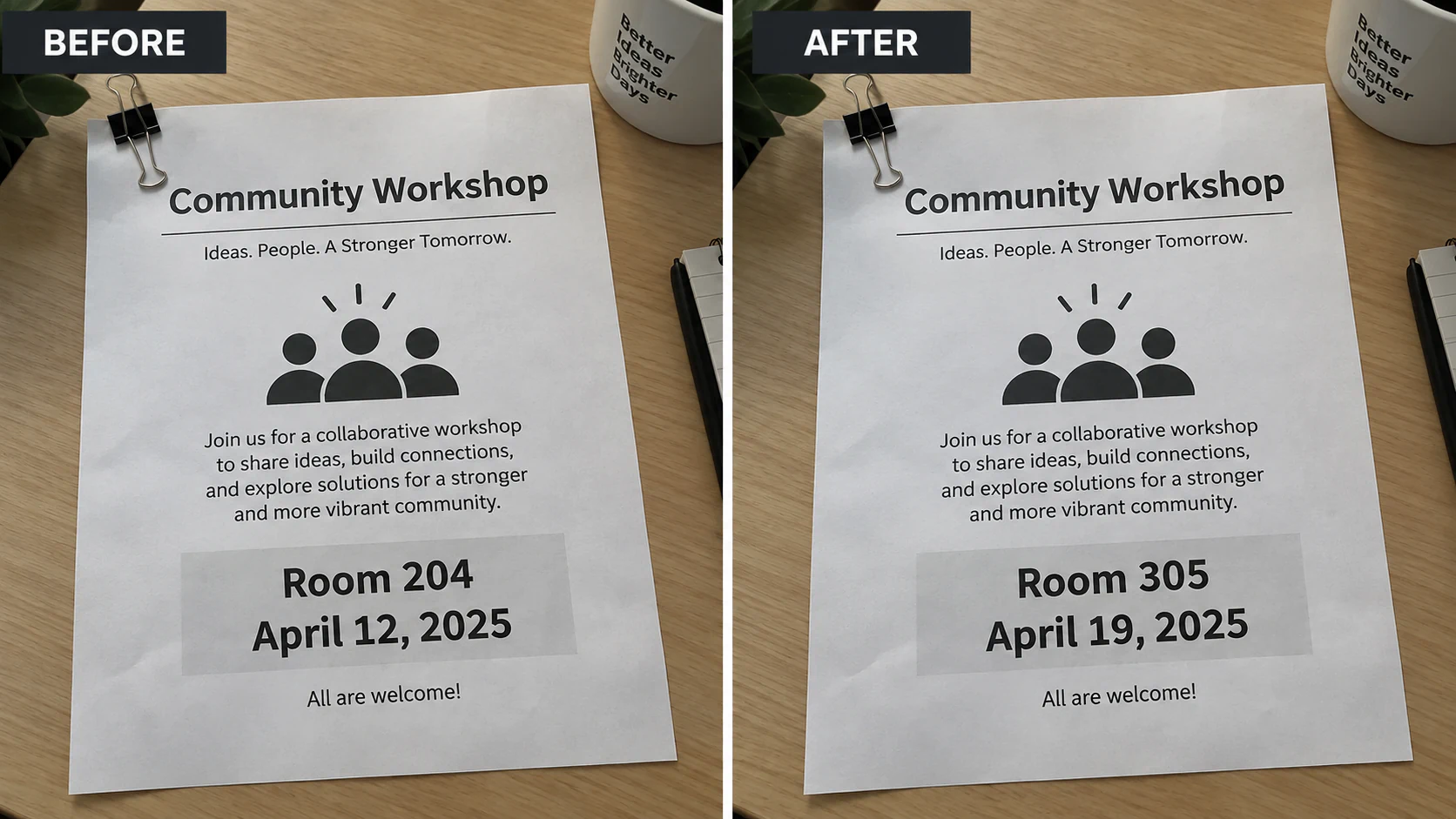
Update a photographed or scanned document
03

Update a photographed or scanned document

Replace a room number, date, heading, or short line while preserving the paper texture, perspective, surrounding copy, and original layout.

“Replace “Room 204” with “Room 305” and “April 12, 2025” with “April 19, 2025”. Keep the paper and layout unchanged.”

Illustrative example. Actual results may vary.

What can you edit with an AI image text editor?

Nano Banana 2.1 is designed for small, visible text changes when you have the finished image but not the editable source file. Instead of choosing fonts and painting over pixels by hand, describe the result you need.

Screenshots and app interfaces

Edit text in a screenshot to fix a typo, update a button, revise an onboarding step, or refresh a product mockup. It is especially useful when the original interface is no longer available to capture again.

Chat and support screenshots

Correct a date, delivery message, status, or short sentence in a synthetic or authorized screenshot. The AI attempts to retain the message bubble, spacing, background, and visual style.

Posters, flyers, and social graphics

Change a headline, event date, call to action, or short caption in a finished graphic. A direct instruction is faster than rebuilding a simple asset for two or three edits.

Product and e-commerce images

Update a promotional price, product label, feature callout, or campaign date while asking Nano Banana 2.1 to preserve the product photo and surrounding design.

Documents and scanned pages

Edit text in a photographed notice, worksheet, handout, or other ordinary document. Clear, large printed text gives the image text editor more visual context than tiny, dense copy.

Slides and presentation images

Fix a heading, statistic, year, or label in an exported slide when you do not have the original deck. The chart, illustration, and presentation layout can remain in place.

How to edit text in an image online

You do not need OCR boxes, layers, masks, or a font picker. The same simple workflow works for screenshots, photos, and documents.

  1. 01

    Upload one image

    Choose a JPEG, PNG, or WebP file up to 10 MB. Nano Banana 2.1 keeps one source image on this page so the instruction stays focused.

  2. 02

    Describe the exact text changes

    Quote the original words and replacements. Add a preservation instruction, such as keeping the layout, colors, text positions, and background unchanged.

  3. 03

    Generate, review, and download

    Start without signing up, inspect the result on this page, and download it. If needed, adjust the wording and try another focused instruction.

How to get a more natural-looking text replacement

AI image editing works best when the request is specific and the target text is easy to identify. A strong prompt tells the editor what to change and what to protect.

  • Put the original and replacement text in quotation marks.
  • Limit one edit to two or three clear replacements.
  • Mention the button, heading, card, or area containing the text.
  • Ask to preserve the layout, font feel, color, spacing, background, and non-target areas.

What the AI may not reproduce perfectly

Nano Banana 2.1 attempts to match the visual feel of the original text, but it does not promise the exact font file or a perfectly identical result at every pixel. Some images may need a clearer prompt or another attempt.

  • Very small or tightly packed text
  • Handwriting and curved lettering
  • Busy, reflective, or highly textured backgrounds
  • Replacements much longer than the original text

AI text replacement vs. overlays and manual editing

The best method depends on the job. Nano Banana 2.1 is useful when you want to edit existing text inside a finished image and can describe a small change directly.

MethodHow it worksBest forTrade-off
Natural-language AI editingDescribe the old text, new text, and what should stay unchanged.Quick edits to screenshots, photos, documents, and finished graphics.Complex text may need another attempt.
Text overlay toolsPlace new text over the image as a separate layer.Adding captions, titles, labels, or new promotional copy.Removing the original text cleanly takes extra work.
Traditional design softwareErase, rebuild the background, find a font, and position text manually.Detailed projects that need hands-on control.Usually requires more time, skill, and editable assets.

Ready to edit text in your image?

Upload one screenshot, photo, or document and describe the exact words you want to replace. Your first real edit can begin without creating an account.

Open the image text editor

Need to remove a passerby instead of changing text? Remove people from your photo

AI image text editor FAQ

What is an AI image text editor?

An AI image text editor changes existing words inside a finished image rather than only adding a new text layer. With Nano Banana 2.1, you upload an image and describe the replacement in natural language. The model then attempts to regenerate the requested text while keeping the surrounding layout, colors, background, and non-target areas close to the source.

Can I edit text in an image online for free?

Yes. Start free without signing in, then continue with available free credits. The free trial uses GPT Image 2.5 Flare at 1K Standard with one reference image.

Do I need to sign up before editing or downloading?

No. Uploading, submitting the first task, reviewing the result, and downloading do not require an account. After the first successful result, Nano Banana 2.1 may show a closable sign-in prompt so you can sync the work, but it is not a download gate.

Can I use Nano Banana 2.1 as a screenshot text editor?

Yes. Ask the AI to change a button label, message, date, number, heading, or short line while preserving the rest of the interface. Clean screenshots with readable text generally work better than compressed or noisy captures.

Can the editor keep the same font and background?

The AI tries to match the font’s visual feel, size, weight, placement, color, and surrounding background. An exact font-file match is not guaranteed. Clear text, a similar replacement length, and a precise preservation instruction improve the chance of a natural result.

How many pieces of text should I change at once?

Two or three short, clearly identified replacements are the intended workflow. Large paragraphs, dense tables, or many unrelated edits make it harder for the model to protect the rest of the image. Split a broad rewrite into smaller attempts.

Which image formats and sizes are supported?

Upload one JPEG, PNG, or WebP image up to 10 MB. Nano Banana 2.1 can select the closest supported aspect ratio unless you have already chosen one manually.

What happens if the image edit fails or looks wrong?

If the task ends in a technical failure, Nano Banana 2.1 returns any credits charged or releases the free attempt. If an image is produced but the text does not look right, your source image and prompt remain available so you can clarify the instruction and try again.

How does Nano Banana 2.1 handle my uploaded image?

Your upload and result are not placed in a public gallery. Anonymous content follows the current 72-hour retention policy, so download anything you want to keep. Do not upload material you do not have the right to edit.

Can I use an edited image commercially?

Free results are for personal, non-commercial use. Paid access includes conditional commercial use, subject to your rights in the source image, third-party trademarks, likenesses, and the applicable Nano Banana 2.1 terms.